
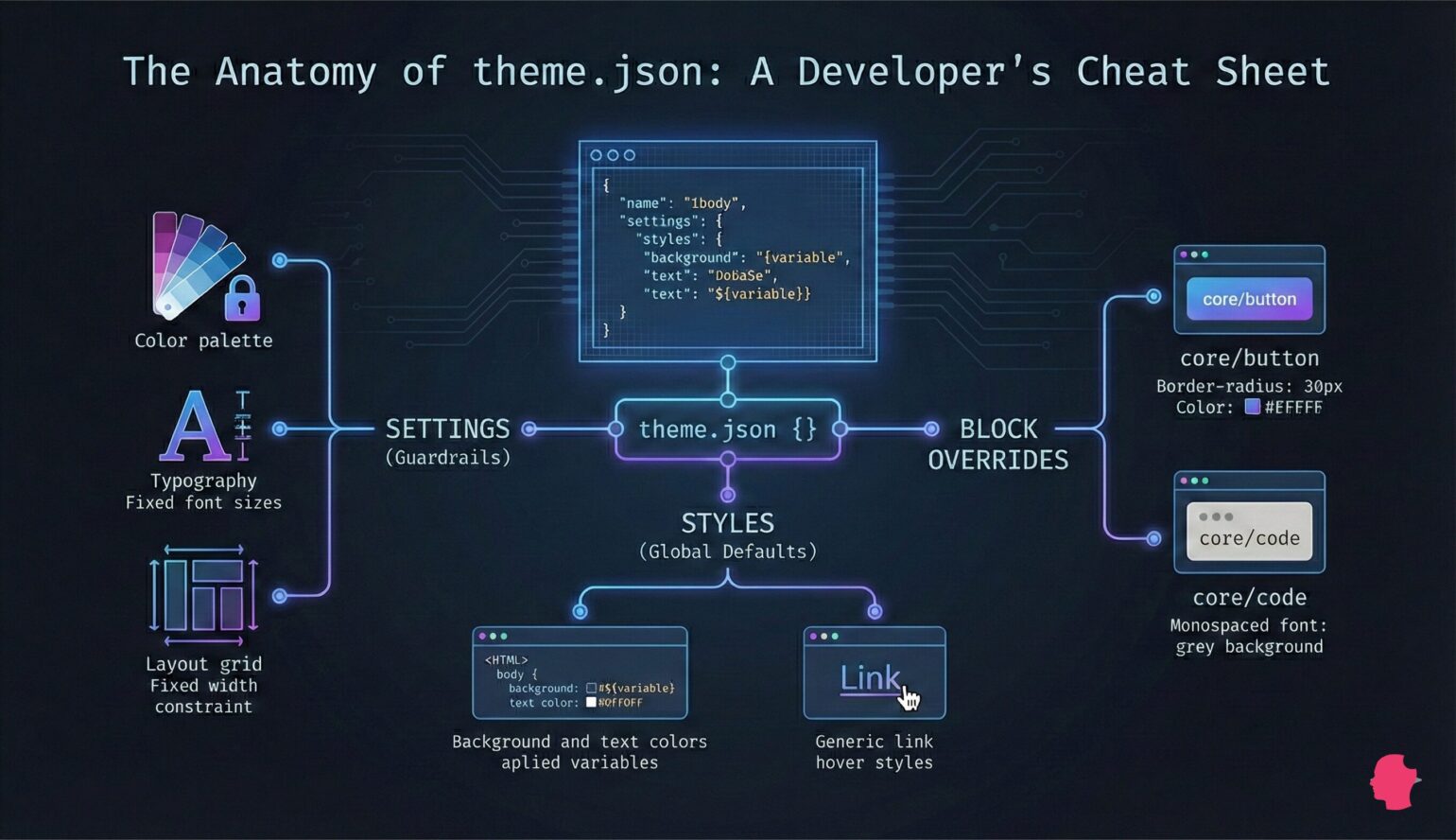
For a long time, the logic of a WordPress® theme lived primarily in functions.php. If you wanted to add support for a custom logo, wide alignment, or editor styles, you reached for add_theme_support(). It was a reliable, albeit often cluttered, way to manage theme configuration.
With the advent of Block Themes and Full Site Editing (FSE), that responsibility has shifted. Now, theme.json is the central nervous system of a modern WordPress theme. It controls the block editor, defines global styles, and manages the presets available to content creators.
It is a massive JSON object that can feel intimidating at first glance. However, once understood, it offers a level of granular control over what clients can and cannot do that was difficult to achieve in the classic PHP era.
Here is a breakdown of the file’s anatomy and how to use it to architect better, more maintainable themes.
The Schema (The Developer’s Best Friend)
One of the biggest hurdles when working with theme.json is remembering the hierarchy. Is it typography.fontSizes or typography.fontFamilies? Does color go inside settings or styles?
The most effective workflow improvement is to define the $schema property at the very top of the file.
{
    "$schema": "https://schemas.wp.org/trunk/theme.json",
    "version": 3
}
This is not just metadata. When using a modern code editor like VS Code, this line enables IntelliSense. It provides autocomplete suggestions for valid properties and flags errors immediately if a key is nested incorrectly. It turns the file from a guessing game into a documented API.
Settings (Building the Guardrails)
The settings section is where you define the rules of the theme. This is where you register palettes, font sizes, and layout constraints.
Crucially, this is also where you lock down the UI. For agencies and freelancers delivering sites to clients, theme.json is the most efficient way to prevent “design drift.” By explicitly disabling custom pickers, you ensure that content creators can only use the brand colors and typography you have defined.
Here is a configuration that enforces a strict design system:
"settings": {
    "color": {
        "custom": false,
        "customGradient": false,
        "palette": [
            {
                "slug": "primary",
                "color": "#2C3E50",
                "name": "Midnight Blue"
            },
            {
                "slug": "secondary",
                "color": "#E74C3C",
                "name": "Alizarin"
            }
        ]
    },
    "typography": {
        "customFontSize": false,
        "fontFamilies": [
            {
                "fontFamily": "Helvetica, Arial, sans-serif",
                "name": "Sans Serif",
                "slug": "sans"
            }
        ],
        "fontSizes": [
            {
                "slug": "normal",
                "size": "1rem",
                "name": "Normal"
            },
            {
                "slug": "large",
                "size": "1.5rem",
                "name": "Large"
            }
        ]
    },
    "layout": {
        "contentSize": "800px",
        "wideSize": "1200px"
    }
}
By setting properties like custom and customFontSize to false, the color pickers and custom input fields disappear from the WordPress editor. The user is left with only the pre-approved options defined in the palette and fontSizes arrays.
Styles (CSS Without the CSS)
The styles section effectively replaces the traditional style.css for global defaults. When WordPress renders the page, it reads this JSON object and generates the necessary CSS variables and classes automatically.
Note: While theme.json handles the visual styling, your theme must still contain a style.css file in the root directory. WordPress relies on the header comment in this file to identify the Theme Name, Author, and Version. You can leave the file empty of actual CSS rules, but the file itself is mandatory for the theme to appear in the WordPress dashboard.
This structure mimics the CSS cascade. You begin by defining the root defaults (usually applied to the <body>) and then move on to specific elements.
"styles": {
    "color": {
        "background": "var(--wp--preset--color--primary)",
        "text": "#ffffff"
    },
    "typography": {
        "fontFamily": "var(--wp--preset--font-family--sans)",
        "fontSize": "var(--wp--preset--font-size--normal)",
        "lineHeight": "1.6"
    },
    "elements": {
        "link": {
            "color": {
                "text": "var(--wp--preset--color--secondary)"
            },
            ":hover": {
                "color": {
                    "text": "#ffffff"
                },
                "typography": {
                    "textDecoration": "underline"
                }
            }
        },
        "h1": {
            "typography": {
                "fontSize": "3rem",
                "fontWeight": "700"
            }
        }
    }
}
Notice the use of CSS Variables (e.g., var(--wp--preset--color--primary)). WordPress automatically generates these variables based on the presets defined in the settings section. Using these variables ensures that if a hex code is changed in the palette, it updates globally across the entire site.
Block-Specific Overrides
A common challenge in theme development is applying distinct styles to specific blocks without writing highly specific CSS selectors that are hard to override later.
theme.json handles this hierarchically. You can drill down into specific blocks to override the global defaults.
For example, if you want all Buttons to have a specific border radius, or the Code block to use a monospaced font family that differs from the body text:
"styles": {
    "blocks": {
        "core/button": {
            "border": {
                "radius": "50px"
            },
            "color": {
                "background": "var(--wp--preset--color--secondary)",
                "text": "#ffffff"
            }
        },
        "core/code": {
            "typography": {
                "fontFamily": "\"Courier New\", Courier, monospace",
                "fontSize": "0.9rem"
            },
            "color": {
                "background": "#f0f0f0",
                "text": "#333333"
            }
        }
    }
}
This approach keeps the styling logic encapsulated. The styles for the button block are attached to the block definition itself, ensuring they load only when a button is actually present on the page.
The Future of Theme Configuration
The shift to theme.json represents a move toward standardization. It reduces the reliance on loose PHP functions and massive CSS files, replacing them with a structured configuration that WordPress understands natively.
For developers, the initial learning curve involves memorizing the structure (or using the schema to do it for you). But the long-term benefit is a theme that is more performant, easier to maintain, and safer to hand off to clients.
