


With the launch of WordPress 7.0, the platform has undergone one of its most significant architectural evolutions in years. Instead of treating artificial intelligence as a collection of disjointed features to bolt on, Core now includes a standardized, native infrastructure layer.
At the center of this is the Connectors API, a centralized, native registry in WordPress 7.0 that allows you to manage your external service credentials in one place instead of forcing you to configure them across multiple separate plugins. As Greg Ziółkowski writes in the Make WordPress post linked above, “The initial focus is on AI providers, giving WordPress a standardized way to handle API key management, provider discovery, and admin UI for configuring AI services.”
While this solves a massive headache, it also introduces new questions about where and how you should stash your secrets.
Saving your keys via the dashboard is convenient, but storing scalable, high-cost AI credentials as plain text in a centralized database table has its downsides. An AI API key can essentially serve as a blank check tied to an open-ended billing account. If an attacker extracts it via the database, the financial liability could be massive. In this article, we explore why shifting your credentials to environment variables is a more secure choice.
Centralized Secrets
Before WordPress 7.0, a site using three different AI-powered plugins required pasting API keys into three entirely different settings screens. This method resulted in fragmented credential storage, messy rate-limiting, and unpredictable security risks.
WordPress 7.0 fixes this by decoupling the core infrastructure from the specific service providers.
- Core Infrastructure: WordPress Core now provides the unified registry layer and the native API endpoints.
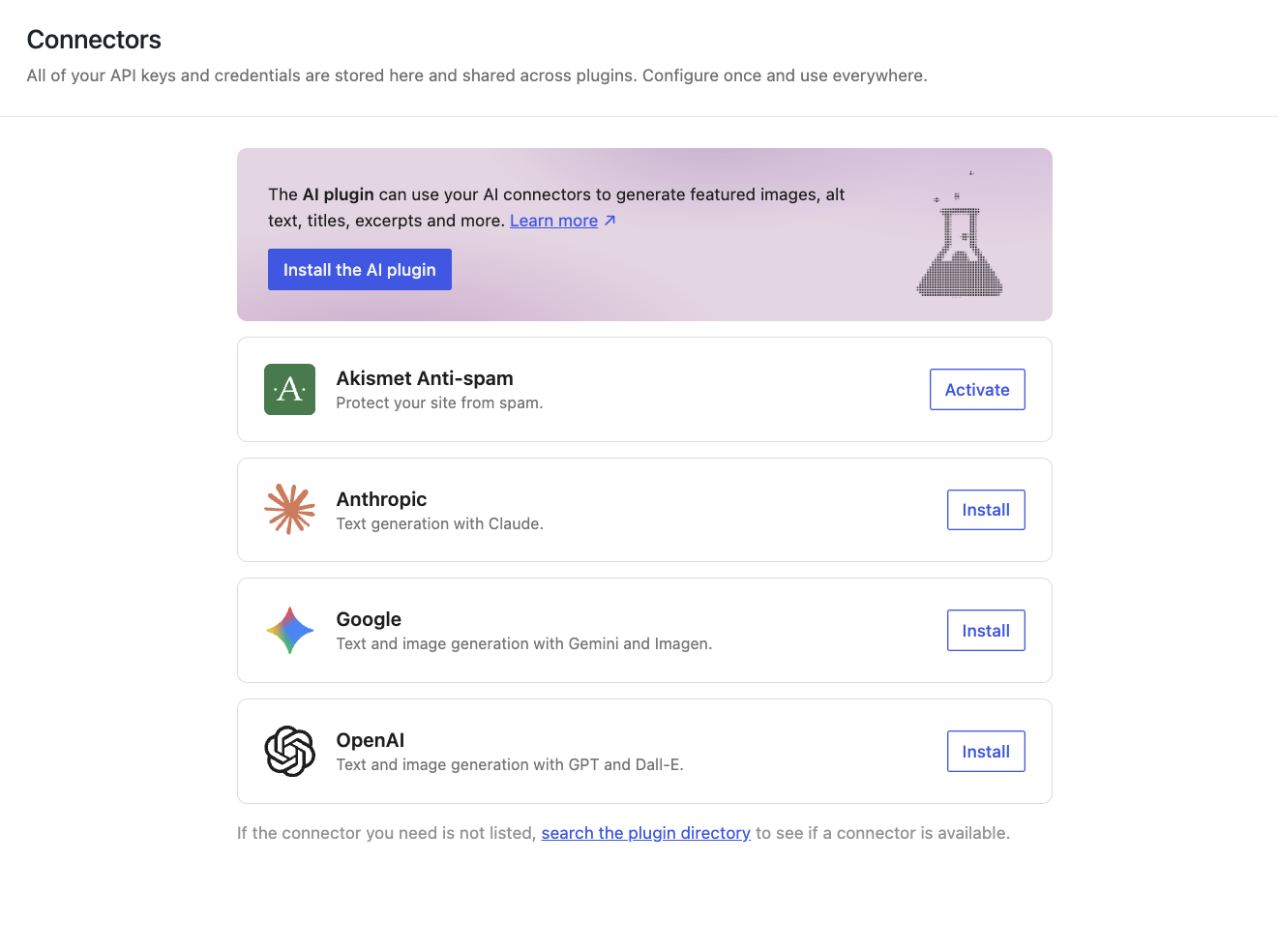
- Companion Plugins: Individual service connections (like OpenAI, Anthropic, or Google) are managed by official companion plugins that register in the Core ecosystem.
The result is a centralized hub located at Settings → Connectors. While this unification provides seamless configuration, it means that a single point of entry now holds the keys to your entire external application ecosystem.
Understanding the Authentication Hierarchy
Securing this architecture requires looking at how WordPress evaluates credentials. The Connectors API uses a strict, three-step waterfall logic to check for API keys:
- Environment Variables (Highest priority)
- PHP Constants (e.g.,
define( 'OPENAI_API_KEY', 'sk-...' );insidewp-config.php) - Database Options (Values submitted through the Settings → Connectors UI)
[System Request]
       │
       ▼
 1. Environment Variables ───► Key Found? ───► [Authenticate]
       │ (Bypasses DB)
       ▼ Key Empty
 2. PHP Constants         ───► Key Found? ───► [Authenticate]
       │
       ▼ Key Empty
 3. Database Storage      ───► Pulls Plain Text from wp_options
Defining your secrets at the server level with environment variables automatically short-circuit this evaluation chain. WordPress never triggers the database lookup for the key, reducing query load and keeping your raw credentials completely decoupled from the database layer.
“Masked” Does Not Mean “Secure”
If you input an API key into the WordPress admin interface, the screen will gracefully mask the characters with bullet points or asterisks. However, masked does not mean encrypted.
Under the hood, WordPress stores these credentials as raw, plain-text strings inside the wp_options table. Because of this storage model, your site’s external accounts are exposed to several common vectors:
- SQL Injection (SQLi): If an unpatched plugin introduces an SQLi flaw anywhere on your site, an attacker can read the raw contents of the
wp_optionstable and extract your production API keys. - Database Export Exposure: Unauthorized database dumps, poorly secured staging environments, or unencrypted backups left in public directories immediately compromise your external billing accounts.
NOTE: The WordPress community recognizes this plain-text limitation. Core ticket #64789 is actively tracking proposals to introduce native database encryption for sensitive stored options in future releases.
Database Cleansing and Syncing with WP Migrate
When transitioning from database storage to server-level environment variables, you must ensure that your deployment tools don’t accidentally leak production keys downward to local environments.
The Connectors API uses a standardized naming schema for options stored in the database:
connectors_{$provider_type}_{$provider_id}_api_key
Because these options use a predictable prefix, configuring your synchronization tools is straightforward.
Preserving Environment Boundaries
When pushing or pulling databases with WP Migrate, you must prevent sensitive credentials from migrating between environments. Use the wpmdb_preserved_options filter to ensure that local or staging variables are never overwritten by a production database pull:
add_filter( 'wpmdb_preserved_options', function( $options ) {
    // The provider type group in WP 7.0 is 'ai'
    $options[] = 'connectors_ai_openai_api_key';
    $options[] = 'connectors_ai_anthropic_api_key';
    return $options;
});
Database Sanitization
Once you have successfully declared your keys as environment variables at the system level, your site immediately switches to them, rendering the database values obsolete. At this point, you can use WP Migrate’s find-and-replace feature to search your wp_options table for the connectors_ string prefix and safely delete those obsolete records.
Wrapping Up
The Connectors API in WordPress 7.0 is a phenomenal structural step forward for the ecosystem, turning the CMS into a highly capable platform for integrated AI capabilities. However, a framework is only as secure as its implementation.
Relying on default database storage exposes your critical external integration credentials to unnecessary vulnerabilities. By embracing the authentication hierarchy and prioritizing server-level environment variables, you harden your infrastructure and protect your operational budgets.